Manage Enterprise App
The Manage App Enterprise section in EasyLife 365 Admin provides a comprehensive overview of all application registrations within your environment. This interface enables administrators to view, configure, and manage app registrations through an intuitive table-based layout.
App Enterprise Overview
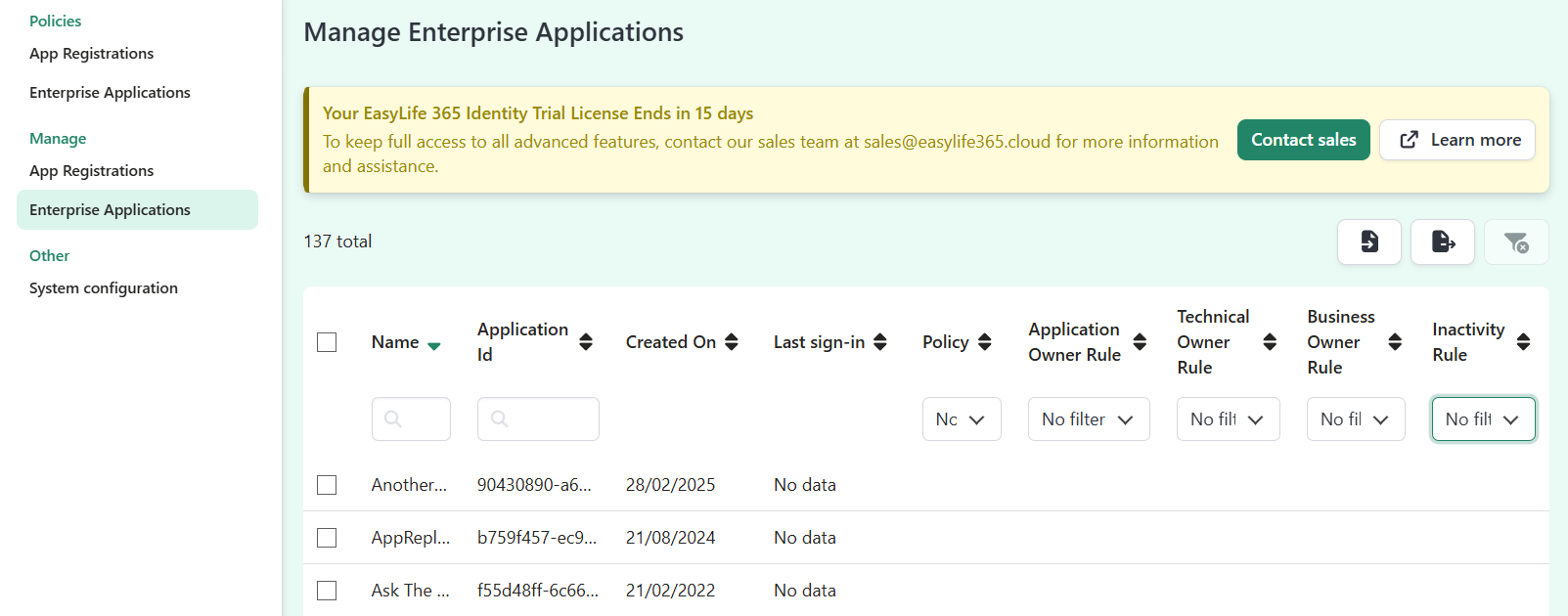
The management table displays a complete list of registered applications with detailed information for each entry. The following fields are presented:
- Name: The display name of the enterprise application
- Application ID: The unique identifier assigned to the application
- Created On: The creation timestamp of the enterprise application
- Last Sign-in: The last sign-in timestamp in the enterprise application
- Policy: The governance policy currently applied to the application
- Application Owner Rule: Indicates whether an Application Owner rule is configured
- Technical Owner Rule: Indicates whether a Technical Owner rule is configured
- Business Owner Rule: Indicates whether a Business Owner rule is configured
- Inactivity Owner Rule: Indicates whether a inactivity Owner rule is configured
Filtering and Sorting
The table supports advanced filtering and sorting capabilities. You can organize data by clicking on column headers to sort, and apply filters to quickly locate specific applications based on various criteria.
Managing Application Policies
You can modify the governance policy applied to any application directly from the management table. To change an application's policy:
- Select the desired application by clicking on its row in the table
- Click the Change Policy button that appears in the action bar
- A modal dialog will open, allowing you to select a different policy from the available options
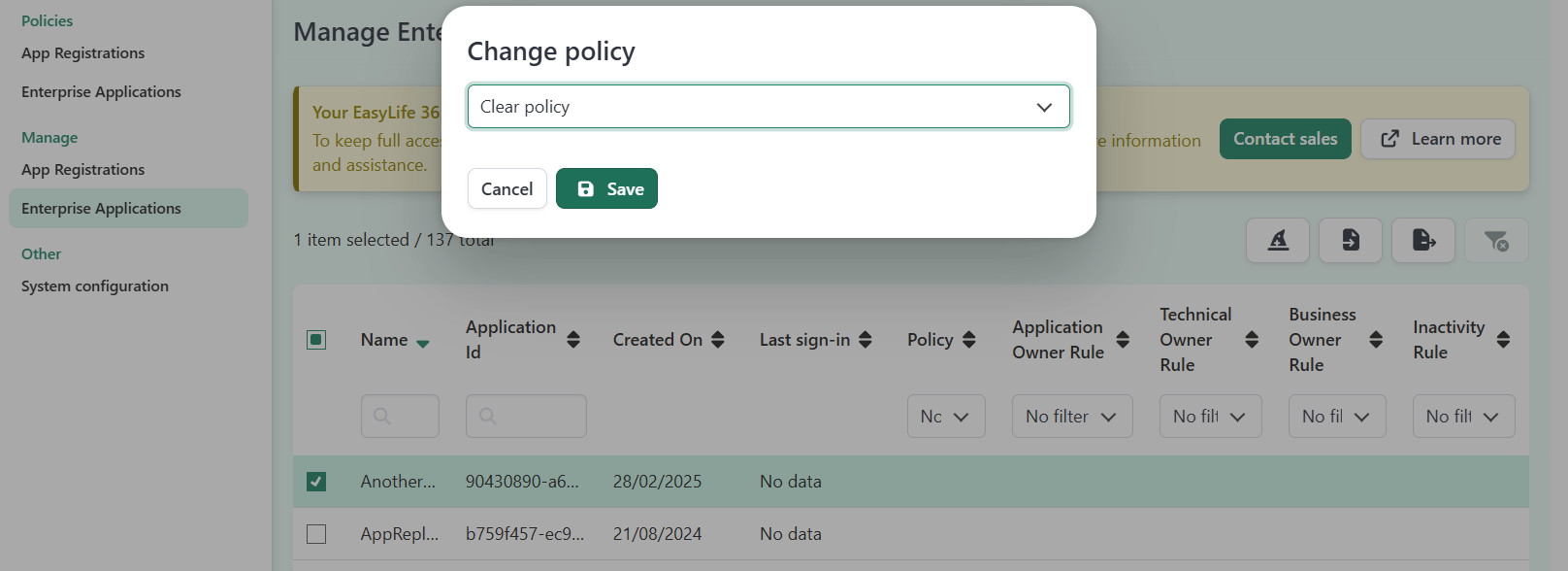
This feature enables quick policy reassignment for individual applications, ensuring that governance rules can be updated efficiently as requirements evolve.
Table Actions
Three primary action buttons are available above the table:
- Clear Filters: Resets all active filters to display the complete list
- Export: Exports the selected applications (or all visible applications if none are selected) to a CSV file. The exported file includes all application details, including the currently assigned policy. You can modify the policy column in the CSV file to reassign governance rules for multiple applications at once.
- Import: Imports application data from a CSV file, allowing bulk updates. This is particularly useful after exporting applications, modifying their policies in the CSV file, and re-importing the updated data. The import operation will update the policy assignments for all applications included in the file.
Bulk Policy Management Workflow
To efficiently manage policies for multiple applications:
- Select the applications you want to update by checking their rows (or export all by leaving the selection empty)
- Export the selected applications to a CSV file
- Modify the policy column in the exported CSV file with the desired policy names and wether is active or not
- Import the modified CSV file to apply the policy changes in bulk
This workflow is ideal for managing policy assignments across large numbers of applications or when implementing governance changes at scale.
For detailed instructions on import and export operations, refer to the dedicated guides in the following sections.